

Reaction to chat messages
Reactions on chat messages allow you to quickly and easily express your thoughts without typing a full response. Whether it’s a thumbs-up for agreement or a smiley face for something funny, adding reactions to messages enhances communication within your team.
Why use reactions?
-
Quick feedback: Reactions provide a fast way to acknowledge or respond to messages without needing to type.
-
Enhanced engagement: Keep conversations lively and engaging by reacting to team members’ messages.
-
Clarity: Use reactions to communicate your response clearly, even in busy chat threads.
React to a message.
Section titled “React to a message.”-
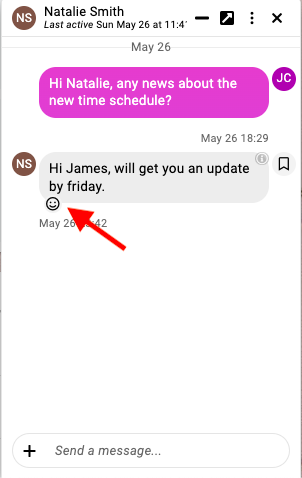
Hover over the message: Move your cursor over the message you would like to react to. An emoji icon will appear next to the message. Click on the emoji icon that appears.
-
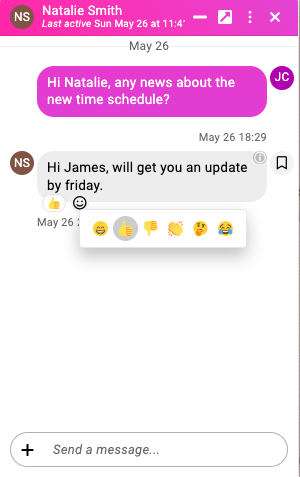
Choose your reaction: Browse through the available emojis and click on the one that best represents your reaction. Your chosen emoji will then appear beneath the message.
Managing your reactions
Section titled “Managing your reactions”-
Change your reaction: If you change your mind, simply click on the emoji icon again and select a different reaction. Your new reaction will replace the old one.
-
Remove a reaction: Hover over the message, click on the emoji icon, and then click on the selected emoji to remove it.